Sign-in and security
Set a password, change your email and turn on two-step sign-in.
You can always sign in with a code we email you. These settings are under Settings, Security.
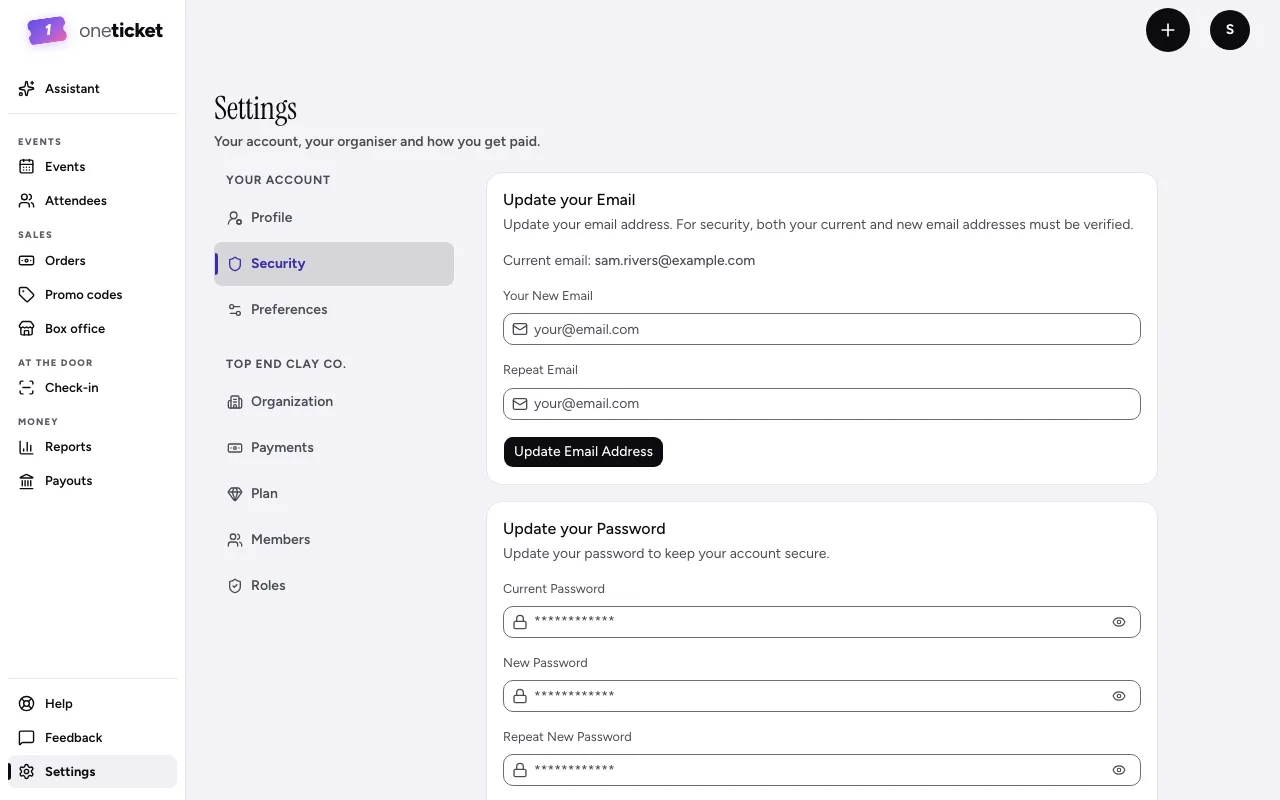
Change your email
These options appear once your account has a password. If you only sign in with emailed codes, first choose Set a password under Two-step sign-in.
- Under Update your Email, type Your New Email twice.
- Choose Update Email Address.
- We email your current address to approve the change, then your new address to confirm it. Both steps are needed.
Set or change a password
A password is optional: emailed codes always work. To set your first one, choose Set a password under Two-step sign-in. Once you have one, change it under Update your Password: type your current password and the new one twice, then choose Update Password.
Two-step sign-in
Two-step sign-in asks for a code from an authenticator app (such as Google Authenticator, Authy or 1Password) after your password.
- Under Two-step sign-in, choose Enable 2-step verification. (If you've only ever signed in with emailed codes, choose Set a password first.)
- Enter your password and choose Continue.
- Scan the QR code with your authenticator app, or enter the code shown, and choose Continue.
- Type the 6-digit code from the app and choose Verify & Enable.
- Save your Backup Codes somewhere safe: choose Copy Codes or Download Codes. They're shown only once, and get you in if you lose your phone.
When you sign in with your password, you can tick Trust this device for 60 days so it doesn't ask again on that device. Emailed sign-in codes skip two-step sign-in.
To turn it off, choose Turn off two-step sign-in and enter your password.
Still stuck? Contact support and a person will get back to you.