Your event page
What buyers see, the button's words, and how booking works for them.
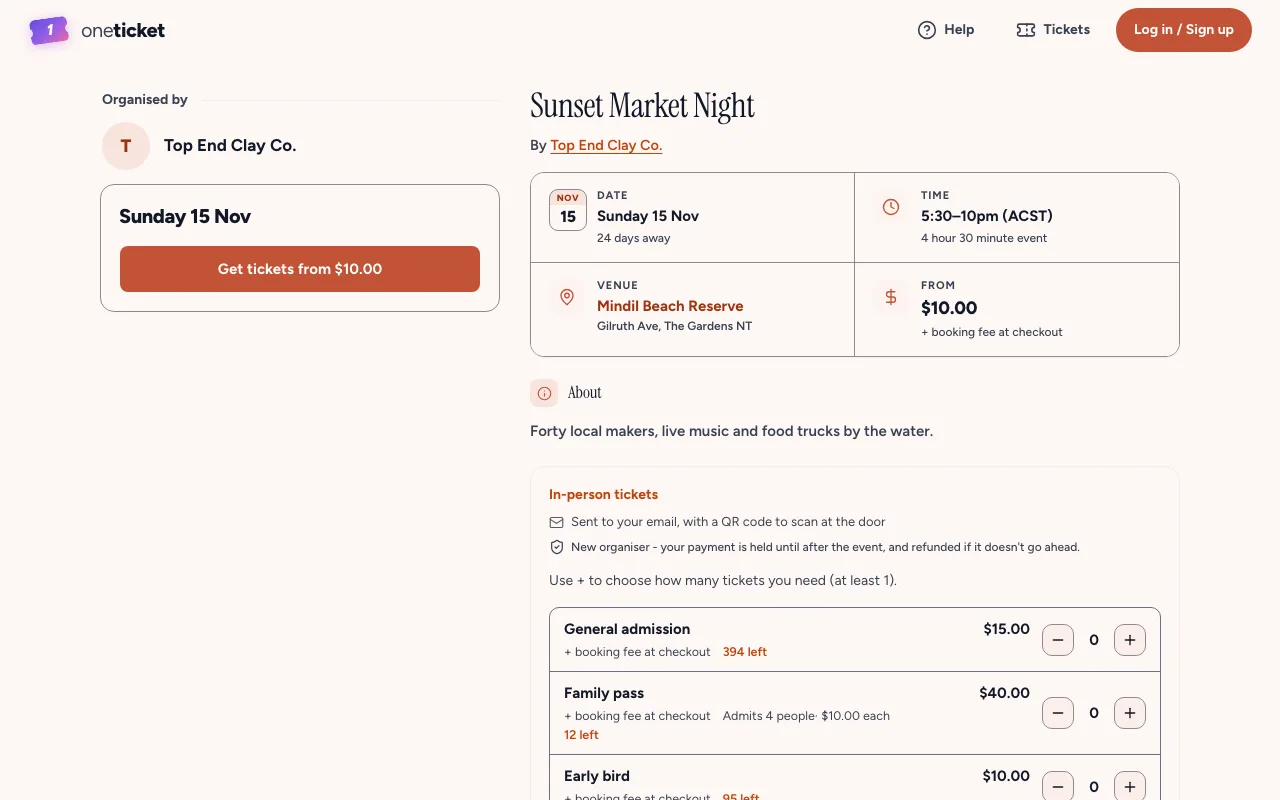
Every event has its own page, at an address like oneticket.com.au/e/your-event. It shows the cover, the date, time and place, the price, your description and refund policy, and the button to book.
How buyers book
- They choose Get tickets (or your own button words).
- They use + to choose how many of each ticket type, and any extras.
- They type their name and email, answer your questions, and enter a promo code if they have one.
- For free tickets they choose Get my tickets. For paid tickets they choose Proceed to Payment and pay on Stripe's secure checkout. The booking fee is shown before they pay.
- Their tickets arrive by email, with a QR code to scan at the door, and are under My tickets whenever they sign in with that email.
Buyers don't need an account.
Change the button's words
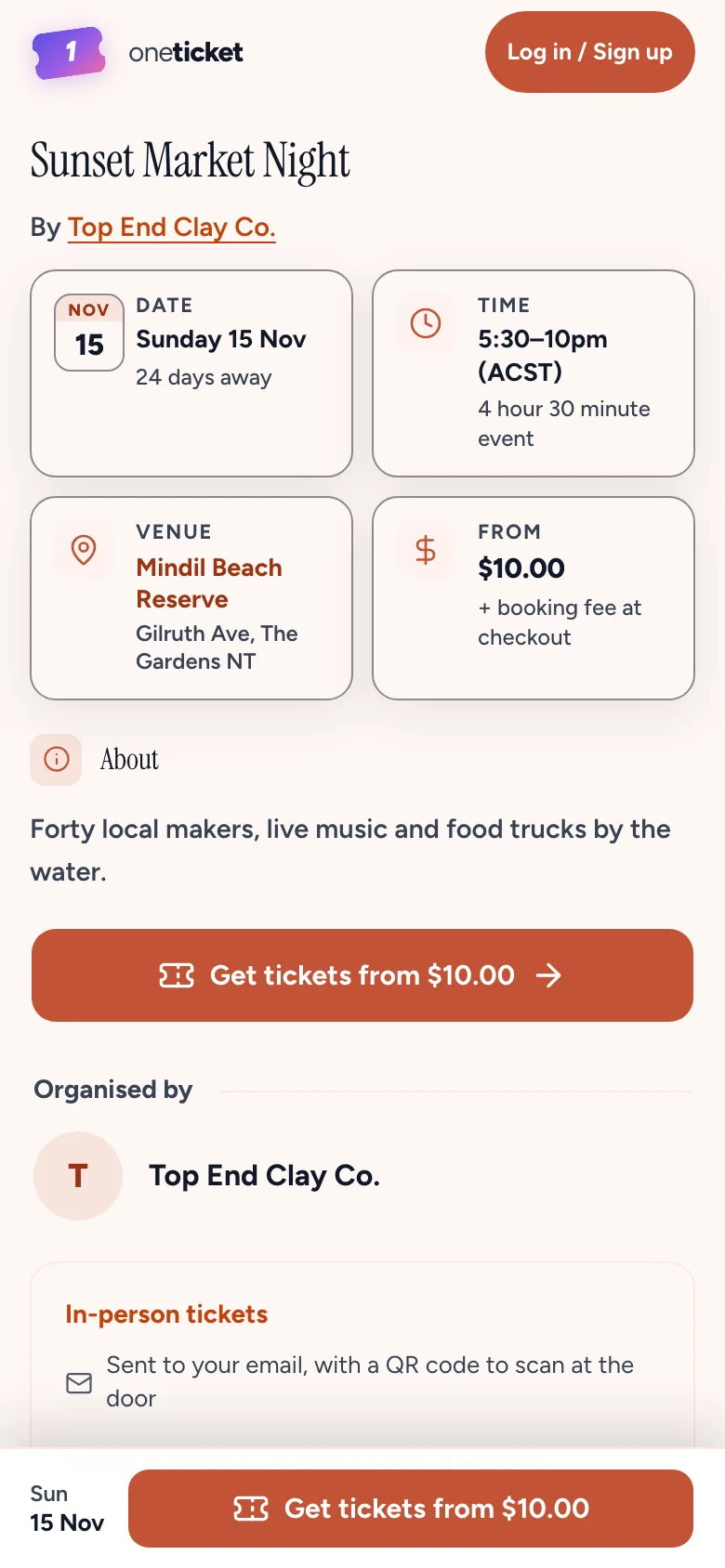
If "tickets" puts people off (for a free class, say), change the button:
- In the editor, choose 8 settings, then Ticket settings.
- Type the Button label, such as "RSVP" or "Register".
- Choose Done, then Save.
Paid checkout still says "Proceed to Payment".
See it as buyers do
Choose Preview in the editor, or the open-in-new-tab button at the top of the event's page in the app. While you're signed in, the page shows your team's view, including ticket types visitors can't see, such as ones behind a code.
Still stuck? Contact support and a person will get back to you.