Reports
Tickets booked, sales, refunds and check-ins for any period, and sales over time.
Reports shows how your events are selling and who came.
Read your report
- Choose Reports in the menu on the left.
- Choose a period from the chips: This month, Last 7 days, Last 30 days (the one you start on) or Last 90 days. On Pro and Team, also Last 12 months, All events and Custom dates, which opens a box to pick From and To, then Show these dates. On Free those chips are marked Pro and open the Plan page.
- The figures show Tickets booked (and how many at the door), Sales after refunds and discounts, Refunded, and Checked in at past events.
- Events lists each event with activity in the period: booked, at the door, checked in, sales and refunded.
- Coming up lists events starting in the next 30 days and how many tickets they've sold.
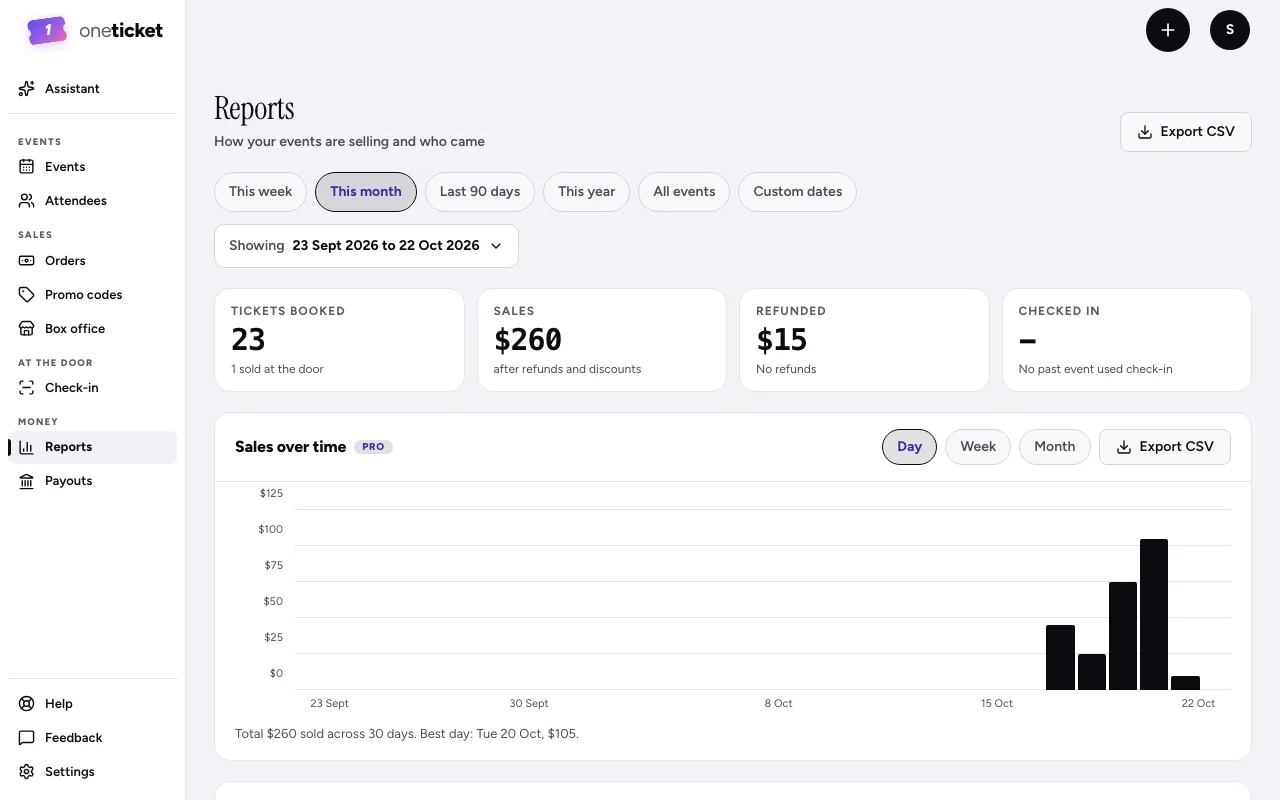
Sales are ticket prices after discounts and refunds. Booking fees paid by buyers aren't included.
Sales over time
Sales over time charts sales per Day, Week or Month, with the total and your best day. Choose Export CSV beside it for the figures.
Extras
If you sell extras, Extras sold shows how many of each sold in the period.
Export CSV at the top right downloads the events table (on a phone, it's in the ⋯ menu).
From your followers
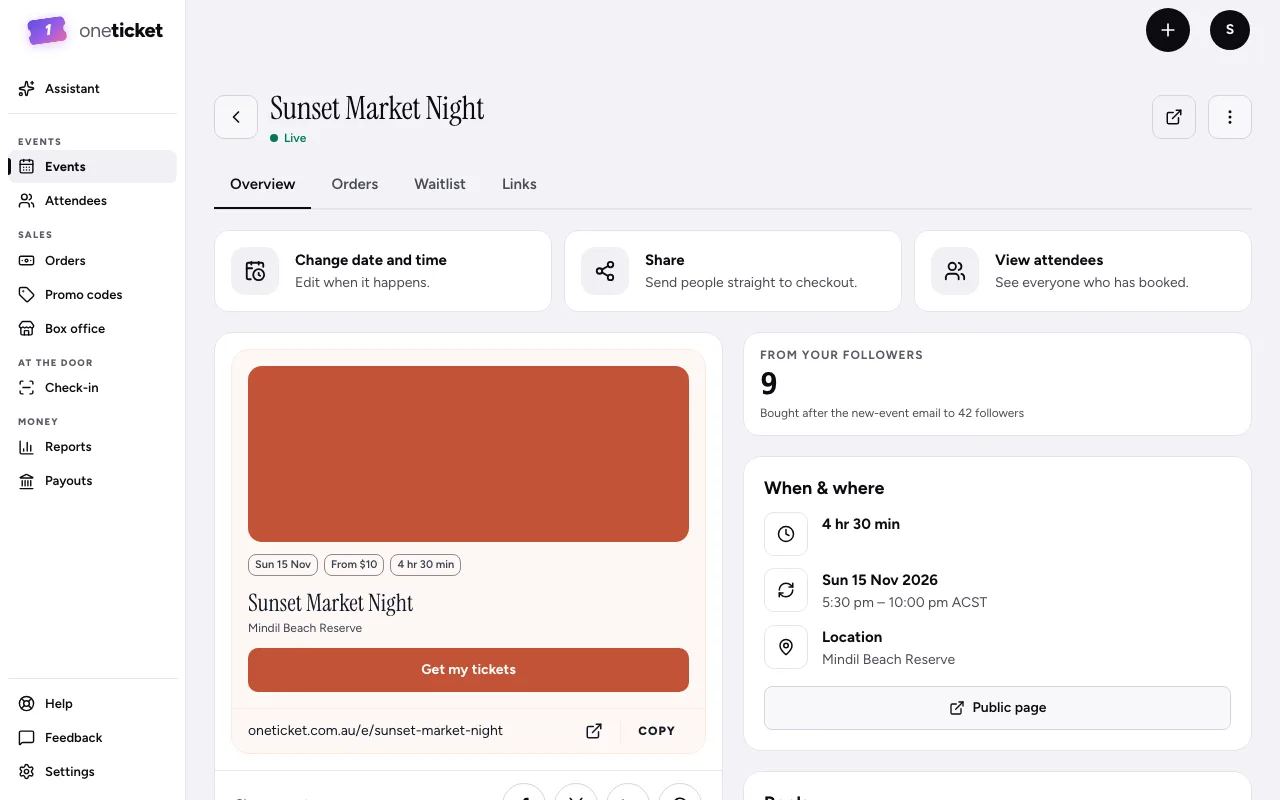
When you put a new event on sale, your followers are emailed about it. To see what that brought in, choose the event on Events to open its page in the app: on its Overview, From your followers counts the tickets they then bought: tickets for this event bought by someone who was sent that email, after it went. Refunded and cancelled tickets aren't counted. Under it, "Bought after the new-event email to 42 followers" says how many were emailed.
It shows once the email has gone, on any plan, to anyone on your team who can see orders.
Still stuck? Contact support and a person will get back to you.