Create an event
Make your first event: a name, a date, a place, a line about it and a ticket.
Making an event takes a couple of minutes. Nothing goes on sale until you publish it, so you can save a draft and come back.
Start from a sentence
You can try this before you have an account. Choose Create with AI in the site's header, or type into the box on the homepage, and describe your event in a sentence: what it is, when, where and the ticket price. The Assistant drafts it, and you can ask it to change anything ("add 60 places"). It's free to try, with a limited number of free messages.
When you're happy, choose Publish (or Edit details). That's when it asks you to Create my account: you get a code by email, choose the currency you sell in, and your draft is waiting in the event editor, saved as a draft event. Nothing goes on sale until you publish it there. Paid tickets need your Stripe account connected before they go on sale, and the editor walks you through it. Already have an account? Choose I have an account: log in.
Signed in, the Assistant does the same from inside the app.
Make the event yourself
- Choose New event at the top right of the app.
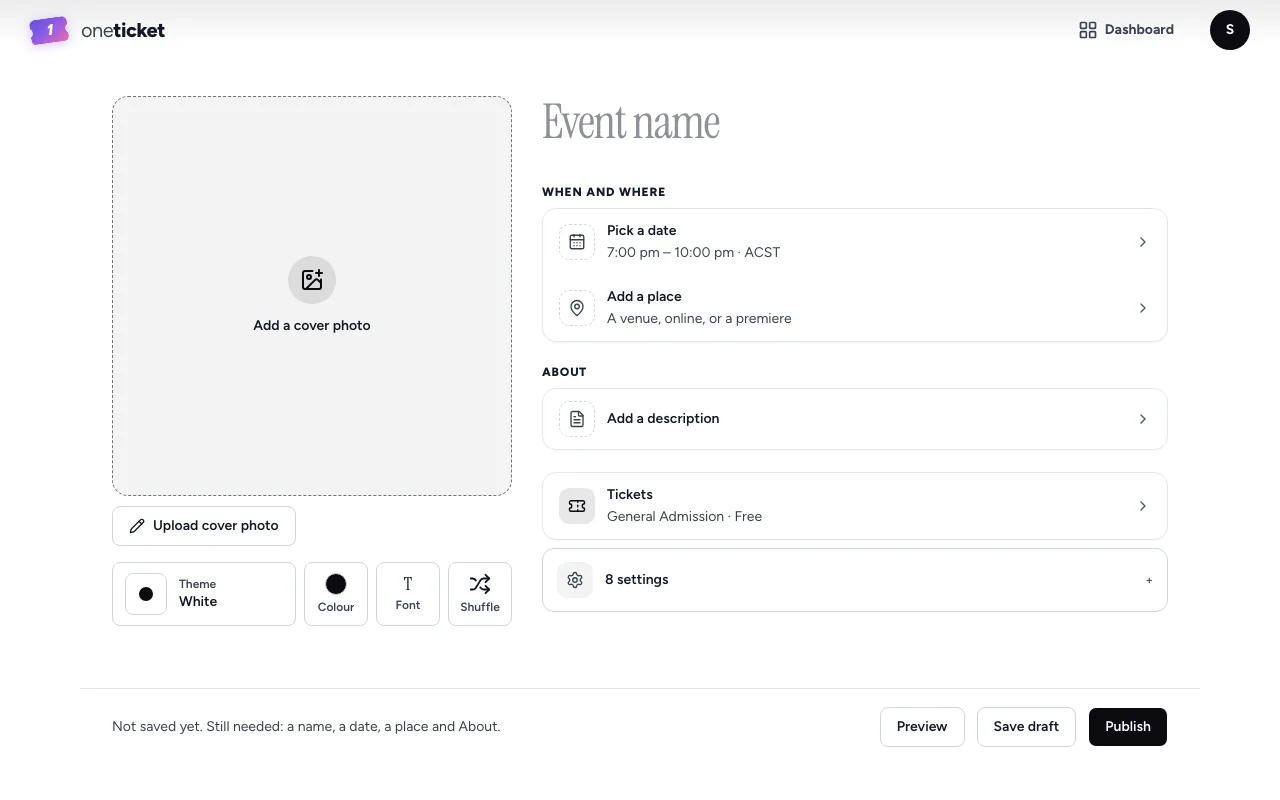
- Click Event name and type the name of your event.
- Choose Pick a date and set the date, the start and end time and the time zone. Choose Save.
- Choose Add a place. Pick In person and type the Venue and its Address (suggested places appear as you type: pick one to fill in the address, and the venue name if it's empty), or pick Online and paste the meeting link. Choose Save.
- Choose Add a description. Write In one line: one sentence that makes people want to come. It shows in listings, and publishing needs at least 10 characters. Add a longer Description under it if you like. Choose Save.
- Choose Tickets. Every new event starts with one free ticket type called General Admission: set its name, price and capacity. See Tickets and prices.
- Choose Save draft to keep it as a draft, or Publish to put it on sale.
What publishing needs
The line at the bottom of the editor tells you what's still missing, for example "Still needed: a name, a date, a place and About." To publish, an event needs:
- a title
- at least one date that hasn't passed
- a location name and street address, or a meeting link for an online event
- a line about it of at least 10 characters
- a ticket type (or No tickets needed, for events people just turn up to)
When everything is there, the line says "Ready to publish. Until you do, only you can see it."
Next steps
- Make it look like yours: a cover photo, colours and a title font.
- Set up your tickets.
- Publish it and share it.
Still stuck? Contact support and a person will get back to you.