Check people in
Scan tickets with any phone's camera, or find guests by name. No app needed.
Check-in works in the browser on any phone, tablet or laptop with a camera. There's no app to install.
Open the scanner
- Choose Check-in (on a phone, it's in the tab bar).
- Your in-person events are listed from when they're published until the day after they run, with how many are in so far.
- Choose Open scanner beside the event.
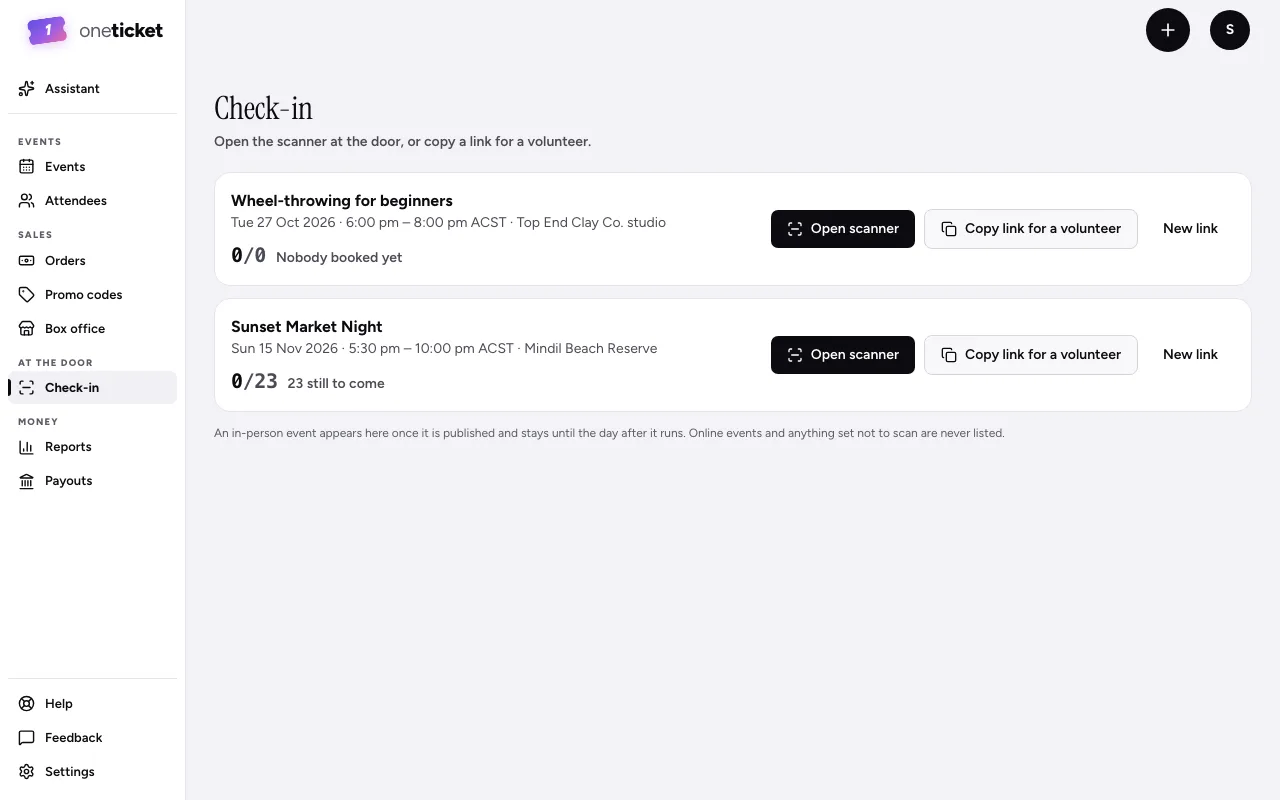
Scan tickets
- On the Scan tickets tab, choose Enable camera and allow the camera when your browser asks.
- Point the camera at the QR code on the guest's phone or printout.
- The banner says what happened:
- Welcome, Name: they're in. For a group booking it shows "Their booking: 2 of 4 in", and any extras on the booking.
- Already in: this ticket has been scanned before.
- Ticket not valid: it was refunded, cancelled or never paid.
- Not on this guest list: check the code, or that it's for this event.
Scanned someone by mistake? Choose Undo check-in.
No camera, or a crumpled printout? Type the code into Or type ticket code and choose Admit.
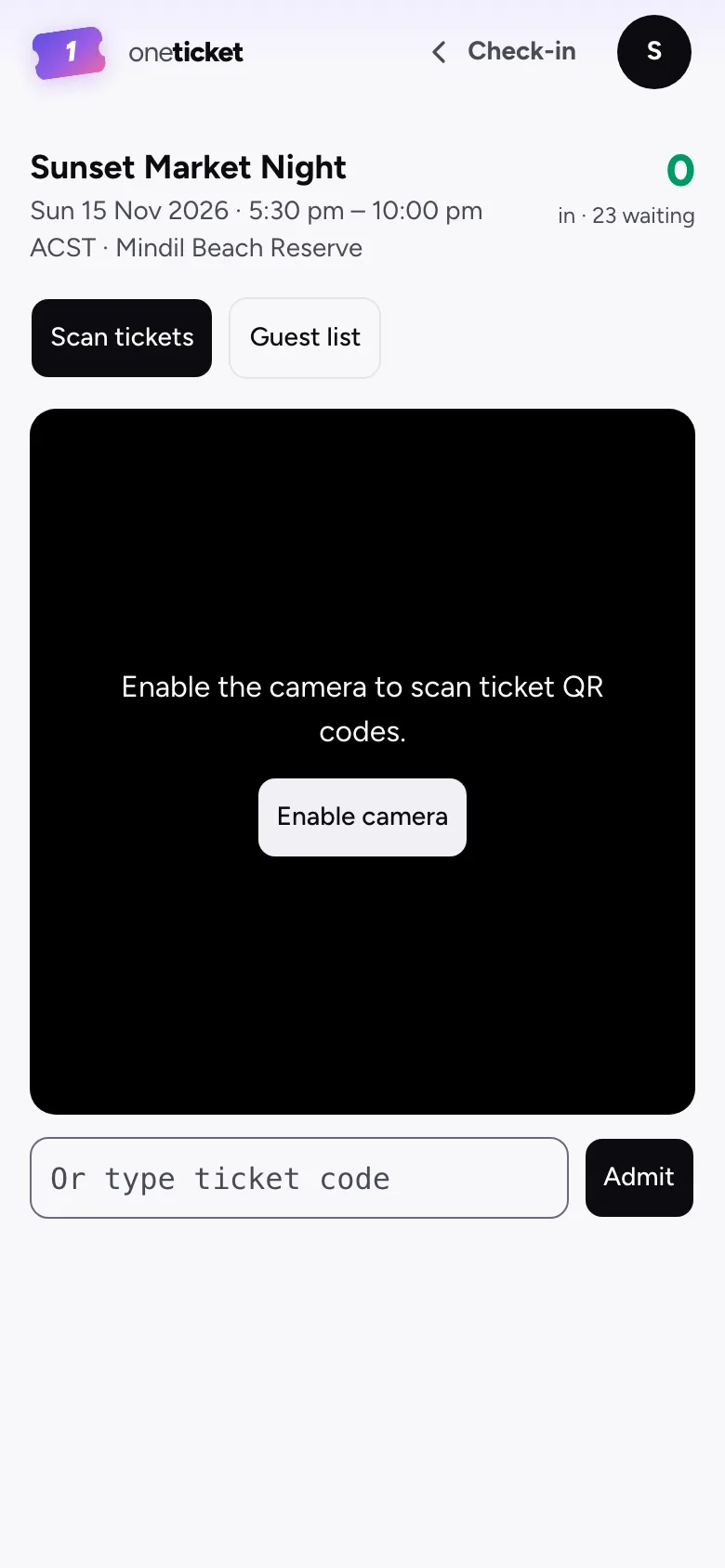
Find someone by name
Choose the Guest list tab. Search by name, email or code, filter by Everyone, Waiting or In, and choose Check in beside their name.
Good to know
- The count at the top shows how many are in and how many are still waiting.
- If the signal drops, the page says "No signal". Scans work again when you're back online.
- On an event that runs over several days, each ticket checks in once a day.
- Online events and events set to No QR code on tickets aren't listed. Find those guests on Attendees.
Want volunteers to scan without signing in? See Door links for volunteers.
Still stuck? Contact support and a person will get back to you.