Team members and roles
Invite people to help run your organiser, and choose what each can do.
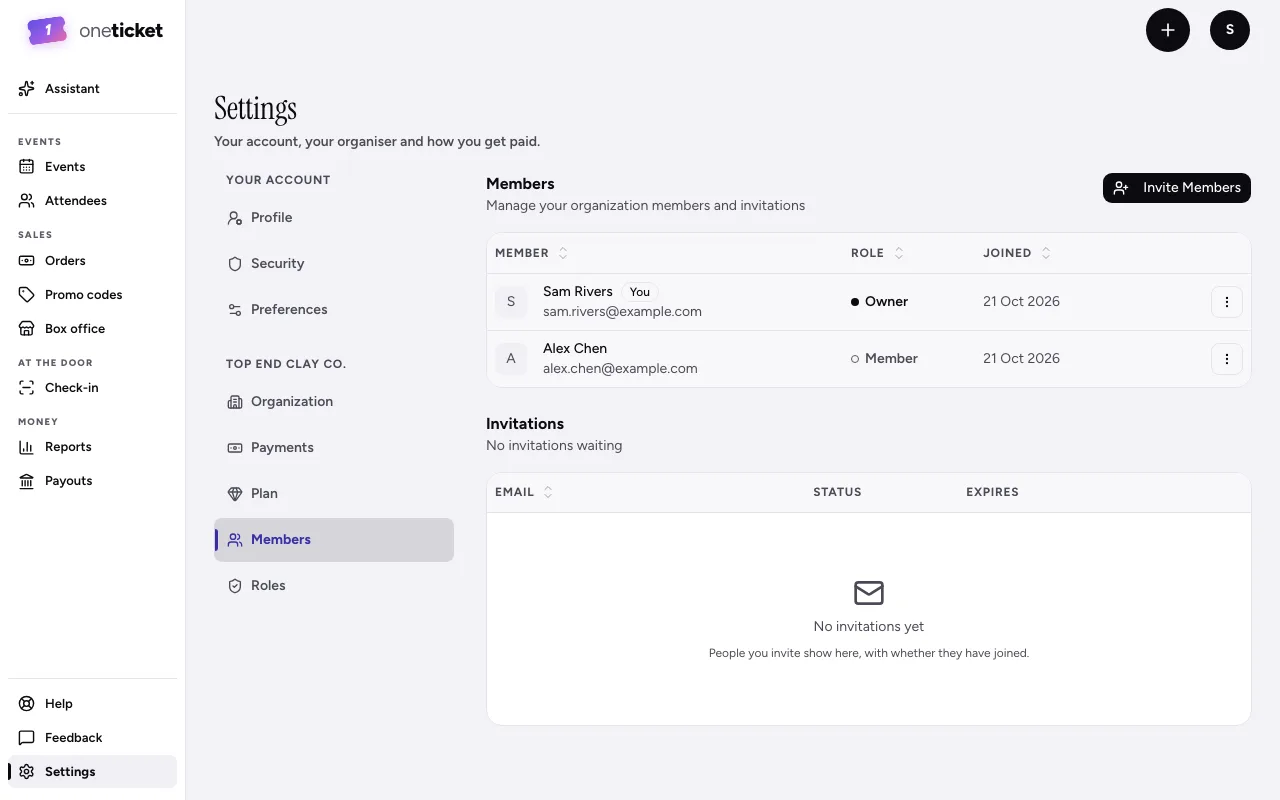
Invite someone
On Free and Pro there's no Invite Members button: the page says "Inviting more people is on Team, up to 10.", with See plans. On Team, once your organiser has room for 10 people (waiting invitations count), remove someone or cancel an invitation to invite another.
- Go to Settings, then Members.
- Choose Invite Members.
- Type their email and choose their role. Choose Add another one to invite several people.
- Choose Send Invites.
They get an email with a link to join. Pending invitations show under Invitations, where you can Resend Invitation or Cancel Invitation.
Roles
- Owner: full access to everything, including the organiser's settings.
- Admin: can manage members, refund orders and most of the organiser's settings. Changing the plan, managing billing and changing payout settings stay with the Owner.
- Member: basic access, and can invite others.
What a role can see and do changes the app: someone who can't see money won't see Payouts, for example, and someone who can't change the refund policy sees it locked.
To change someone's role, open their menu (⋮) on Members and choose Change Role. Remove from Account takes them off the organiser.
Still stuck? Contact support and a person will get back to you.