Your organiser page
One address with your name, logo and every public event, and how to make it yours.
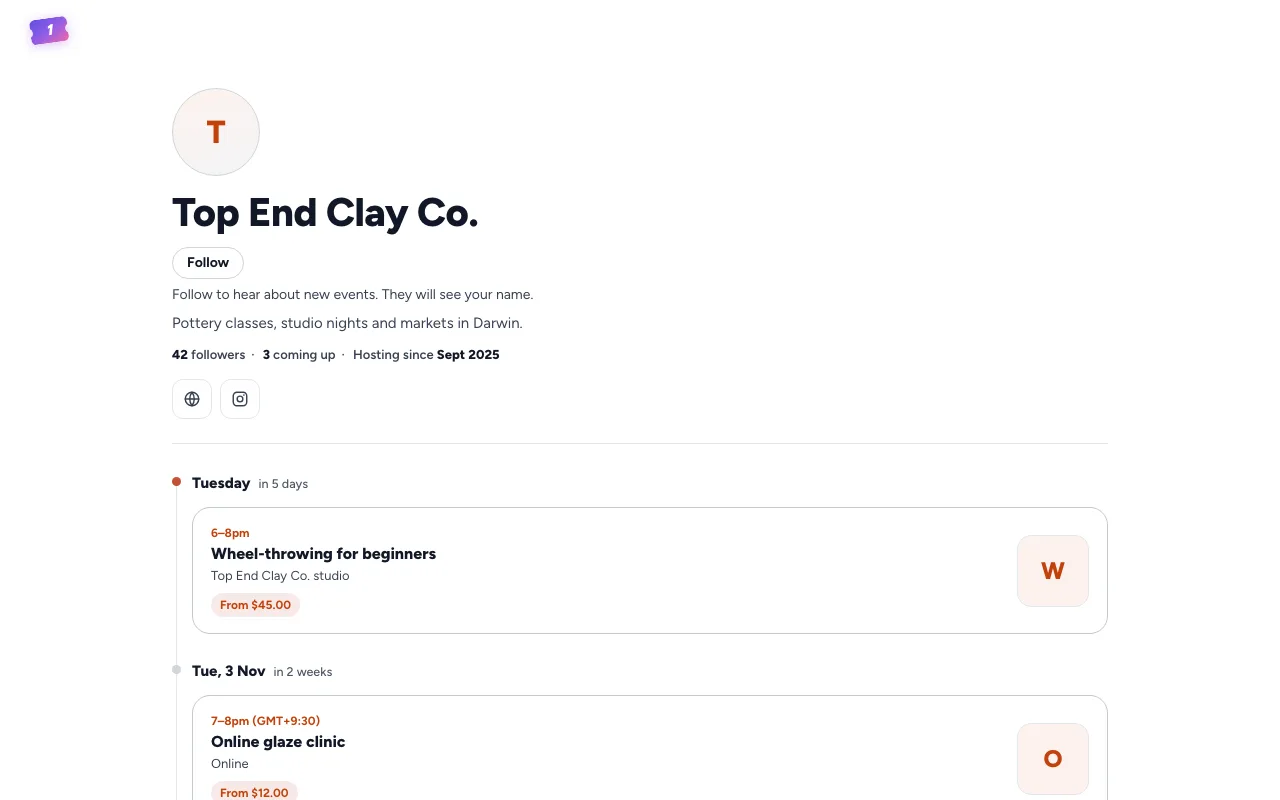
Every organiser has a page, on every plan, at an address like oneticket.com.au/o/your-name. It lists your public events to come and gone, and your series. Share it in your Instagram bio, newsletter or website, and new events appear on it by themselves.
Find your page
- Go to Settings, then Organization.
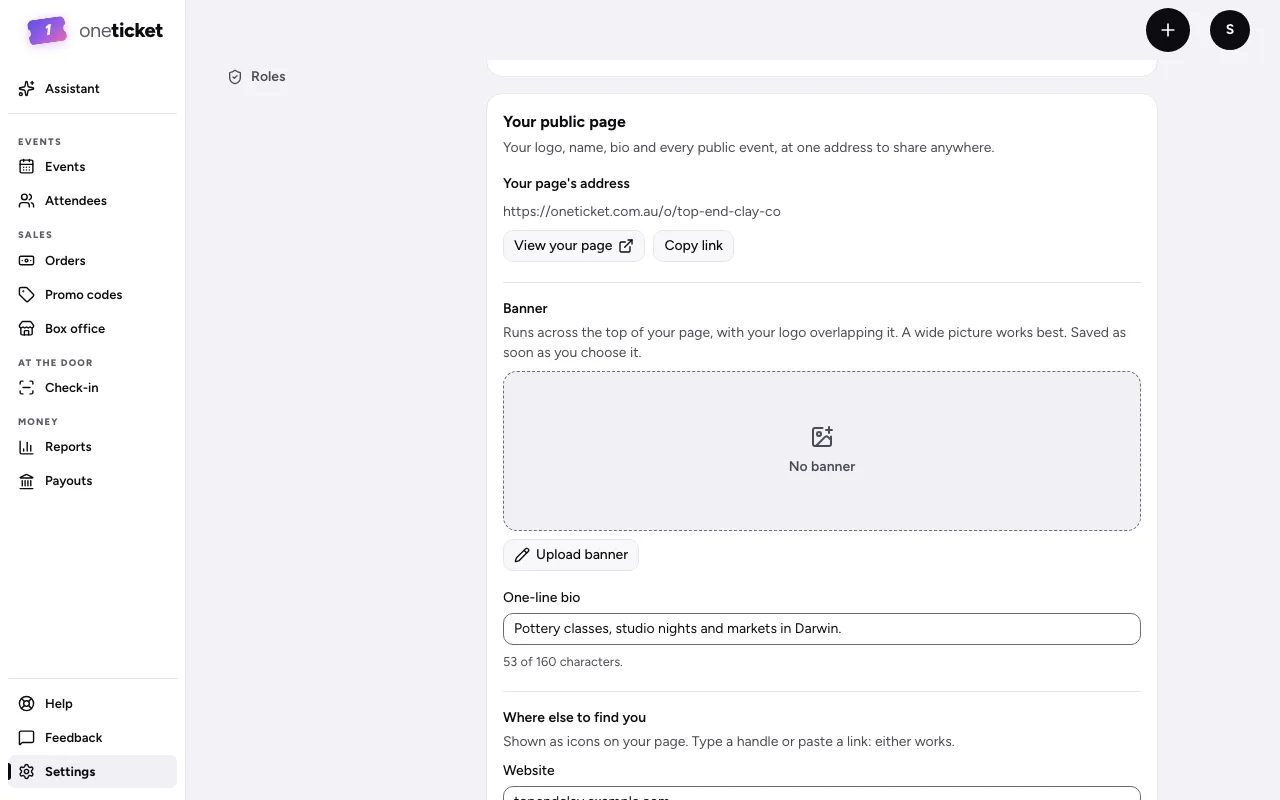
- Under Your public page, Your page's address shows the link. Choose View your page to open it, or Copy link.
Your name and logo
On the same page:
- Organization Logo: click to upload (JPEG, PNG, GIF or WebP, up to 2 MB).
- Organization Name: the name buyers see. Choose Save Changes.
Make it yours
Under Your public page:
- One-line bio: what you put on, the city, the vibe or who it's for (up to 160 characters). On every plan.
- Banner (Pro and Team): choose Upload banner. It runs across the top, with your logo overlapping it; a wide picture works best. It's saved as soon as you choose it.
- Where else to find you (Pro and Team): your Website, Instagram, Facebook and Email. They show as icons. Type a handle or paste a link: either works.
- Page colours (Pro and Team): the background and an accent for buttons and links. Your events each keep their own look.
- Choose Save.
On Free
- Your page stays at the same address, so every link to it keeps working. It's in plain colours, without a banner or links.
- A banner, links or colours you chose on Pro or Team are kept, and show again if you go back to Pro or Team.
- You can still remove them: Remove beside the banner, and Remove links under Where else to find you to clear your old links for good (they won't come back on Pro).
- Only Pro and Team pages are listed for search engines (in our sitemap). Your public events are listed on any plan.
What shows on it
- Upcoming, Series and Past events, with counts such as followers, events run and how long you've been hosting.
- Only Public events. Unlisted and private ones, and any with Keep it off my public profile turned on, aren't listed.
- A Follow button, so visitors hear about your next event. See Followers.
- The verified tick, once you've earned it.
Only owners and admins can change the page.
Still stuck? Contact support and a person will get back to you.