Find an order
The Orders list, filters and search, and everything on an order's page.
Every booking is an order: who bought, for which event, how many tickets and what they paid.
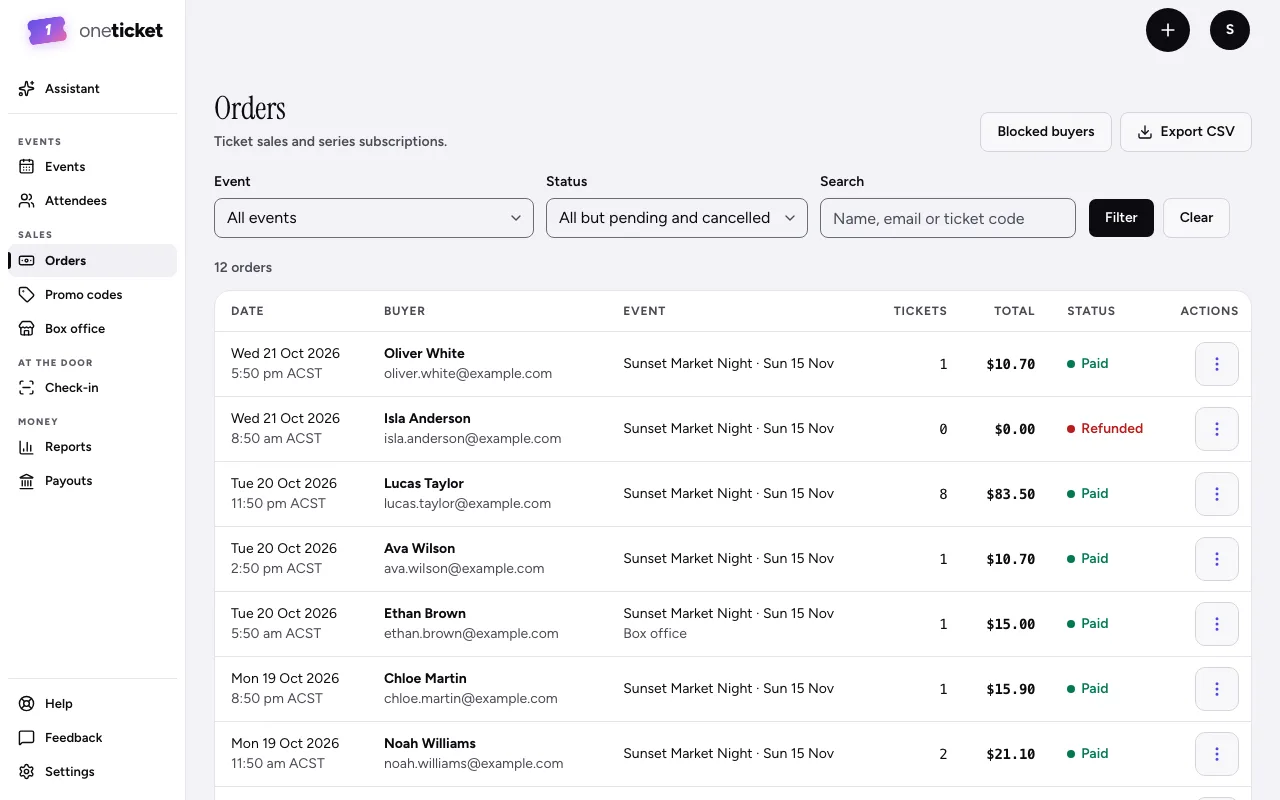
The Orders list
Choose Orders in the menu on the left. Newest orders are first, with the date, buyer, event, tickets, total and status. The tabs under the title switch between Orders and Subscriptions (once someone subscribes to a series).
To narrow the list:
- Type a name, email or ticket code in Search.
- Choose the Event chip: All events, Coming up, Past, Archived, or one event.
- Choose the Status chip. The default is All but pending and cancelled.
The list narrows as you type or pick: there's no button to press. Clear appears once a filter is on, and shows everything again.
At the top right, Export CSV downloads the orders (see Export to a spreadsheet), and the ⋯ menu has Blocked buyers. On a phone, Export CSV is in that menu too.
Order statuses
- Paid: paid online or at the door.
- Free: a free booking.
- Partly refunded and Refunded: some or all of the money has gone back.
- Pending: a checkout that hasn't been paid yet.
- Cancelled: called off before it was paid.
An order's page
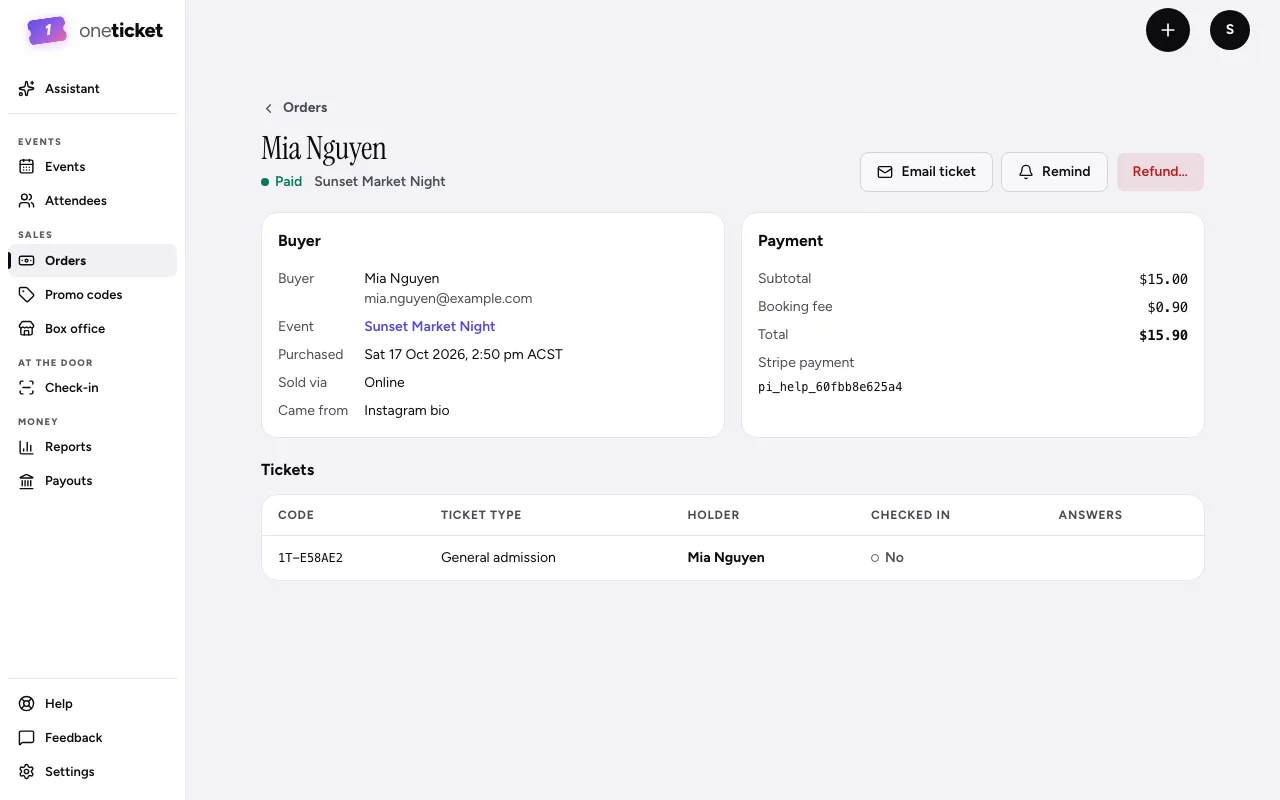
Choose an order to open it. You'll see:
- Buyer: their name and email, the event, when they bought and how (Sold via online, box office or subscription).
- Payment: the subtotal, any discount and promo code, the booking fee, the total and, for absorbed fees, what you receive.
- Tickets: each ticket's code, ticket type, holder, whether they've checked in, and their answers to your questions.
- Ticket email: whether it was sent.
An order can carry a note at the top when something happened to it:
- If the event was cancelled, it says whether the order was refunded in full, is still waiting on its refund, was paid in person (hand the money back yourself) or was free and cancelled. Its tickets no longer work.
- If the buyer or a guest used Didn't book this? from their ticket email, it says so, with the date. The booking was cancelled, and One Ticket won't email that address for your events again.
From here you can Email ticket, Remind and Refund. See Email tickets and reminders and Refund an order.
The order menu
On the Orders list, each order's menu (⋮) has Email ticket, Remind, Refund and Block buyer.
Still stuck? Contact support and a person will get back to you.