Referrers
Give each person who brings people to your webinars their own link, and email them who joined and how long they watched.
A referrer is someone who brings people to your webinars, such as a coach, a partner or a team leader. Each referrer has their own short link. Buyers who come through it have that referrer picked when they book, and after each premiere showing the referrer is emailed how their people took part.
Add a referrer
- Go to Settings, then Referrers.
- Choose Add referrer.
- Type their Name. Buyers see this name when they choose their referrer.
- Type their Email. Only you and your team see it.
- Check the Link ending: the end of their link. It starts as 6 random letters and numbers. Type your own if you like, such as their name: 3 to 30 lowercase letters, numbers and hyphens. Their link shows the whole address as you type.
- Choose Add referrer.
We email them once to confirm their address. Nothing about anyone goes to them until they choose Confirm my email.
Owners and admins look after referrers: the people who can export orders, as referrers are sent attendees' details. You can have up to 200, adding up to 20 a day.
Your list of referrers
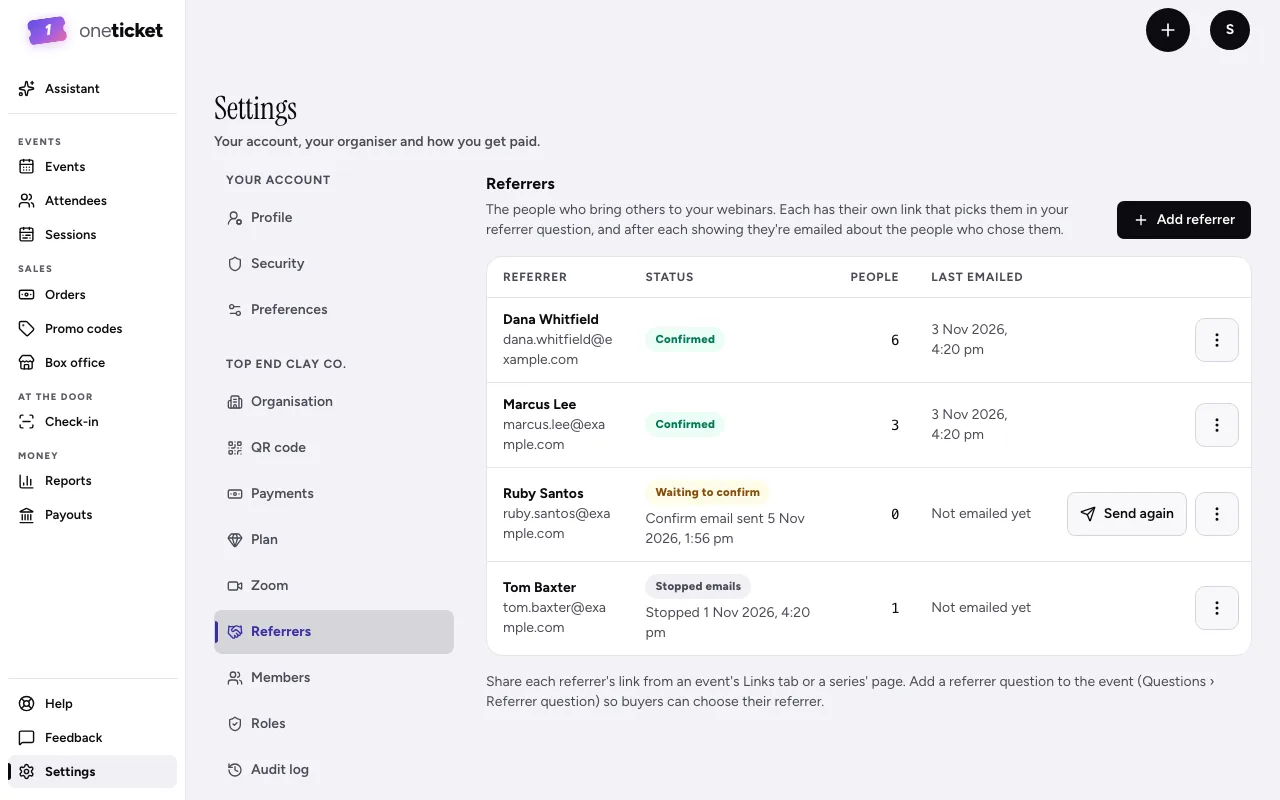
Each referrer shows their Status:
- Waiting to confirm: the confirm email has gone, and they haven't confirmed yet. Send again sends it again (at most once an hour, and three times in all; after that, ask them to check their spam folder).
- Confirmed: they're emailed after each showing.
- Stopped emails: they turned the emails off.
- Email bounced: emails to their address bounce. Check it.
People says how many chose them, and Last emailed when their last email went.
Change or remove a referrer
Open a referrer's menu (⋮):
- Edit: fix their name or their email, one at a time. A new email is confirmed again. You can change their Link ending too: links already shared with the old ending will no longer pick them, and still open the event's page. The old ending stays theirs: it never picks anyone else, and they can have it back.
- Remove: their link stops picking them and no more emails go to them. Bookings that chose them keep saying so.
Every ending is used once among your referrers, removed ones included. An ending One Ticket uses itself (such as "tickets" or "watch") can't be chosen.
Ask buyers who referred them
Add the referrer question to your event, so buyers can choose their referrer:
- In the editor, open the settings, then Questions.
- Choose Add referrer question. It shows once you have a referrer, and an event asks one.
- Change the Question if you like: it starts as "Who invited you?".
- Switch on Required if everyone must answer: they then choose a referrer, or No one, to book.
- Choose Done, then Save.
Buyers choose from your referrers by name, or No one, for each ticket as they book. Once they pick someone, it says "Your details will be shared with" that referrer. For a series, add it to every showing at once with Edit all sessions and Questions: see Edit a series. See also Questions at checkout.
Share each referrer's link
- An event: on Events, choose the event to open its page in the app, then the Links tab. Referrer links lists each referrer's link to this event, with Copy link and QR code.
- A series: the series' page has the same Referrer links card, with a link to the series that picks them at every showing.
Manage referrers goes to Settings. Until the event asks the referrer question, the card says "Buyers can't choose a referrer here yet".
An event's link looks like oneticket.com.au/e/your-event/sam-lee, and a series' oneticket.com.au/s/your-series/sam-lee. It opens the page with the referrer already picked in the question. The buyer's phone or computer remembers it for 30 days, so a booking made later, for another showing or another of your events, still picks them. The buyer can choose someone else before booking, and the last referrer link they opened wins.
See what each referrer brings
- The Links tab and the series' card show each referrer's tickets and their share of the sales, such as "12 tickets · $240.00 in sales".
- An order has a Referrer row with who each ticket chose. Choose Change to put it right: the change is written in the audit log.
- Attendees has a Referrer column and a Referrer filter (All referrers, one referrer, or No one). Its Export CSV has a Referrer column.
- Settings › Referrers counts the People who chose each one.
A ticket passed on to someone else loses its referrer: the new holder never chose them.
The email after each showing
About 15 minutes after a premiere showing ends, each confirmed referrer with people in it is emailed how they took part:
- how many registered, joined and stayed to the end, and how long they watched on average
- each person: when they joined and left, how long they watched, their quiz score and how many questions they answered
- a spreadsheet with everyone: when they joined and left, the minute they reached, and their answers in the webinar
These emails are for premieres only. An event in person, or online with Zoom or another meeting link, records who chose whom, but sends no email.
The showing's overview in the app has a Referrer emails card: each referrer with people in it, how many, and where their email is: Not sent yet, Sending soon once the showing has ended, Sent (when), or why it won't go (Waiting to confirm, Stopped emails, Email bounced or Removed). Once the showing has ended, Resend sends a confirmed referrer's email again (once every 10 minutes at most).
Every email has a link for the referrer to stop them. Their status then reads Stopped emails, and they can start them again from the same link.
Still stuck? Contact support and a person will get back to you.