Add an event by importing it
Paste your event's link from Eventbrite, Humanitix, Luma, TryBooking or TicketHost to list it on One Ticket, its tickets staying there.
Have another event on your platform? Paste its link and it comes across in a minute: its name, dates, place, prices and photo, read from its page. You check it, then list it. Nothing changes on your platform.
You need a One Ticket account for this. If we listed your first event for you, sign in with the email address we wrote to (see Make your listing yours).
List it
- Open your event's page on Eventbrite, Humanitix, Luma, TryBooking or TicketHost, and copy its address from the top of your browser.
- In One Ticket, choose New event, then Import event beside Start from a template. It opens in a new tab. (Or go straight to oneticket.com.au/list.)
- Paste the address into Your event's link and choose Bring it over.
- Under We found your event, check what we read from your page.
- Under What would you like to do?, choose Just list it.
- Your page opens as people will see it, marked "Preview: not on One Ticket yet". Look it over, then choose Approve this listing at the foot.
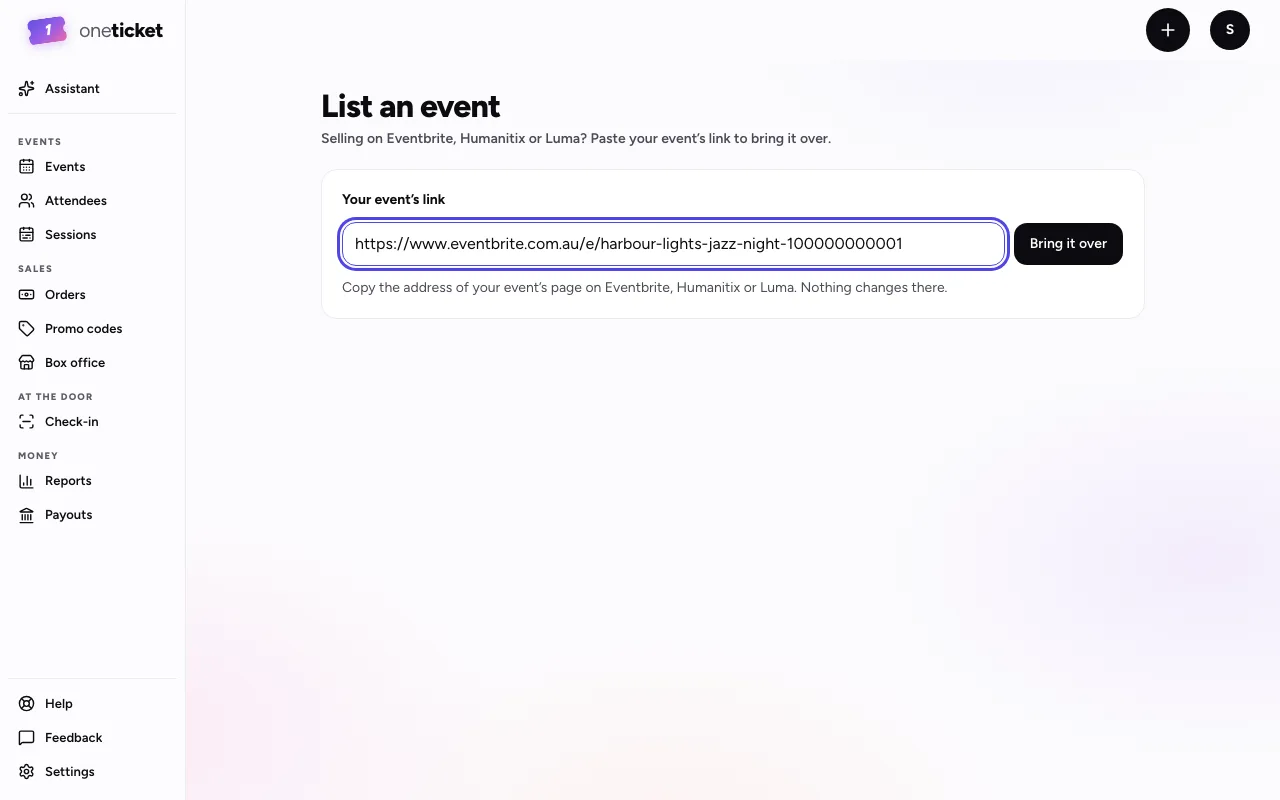
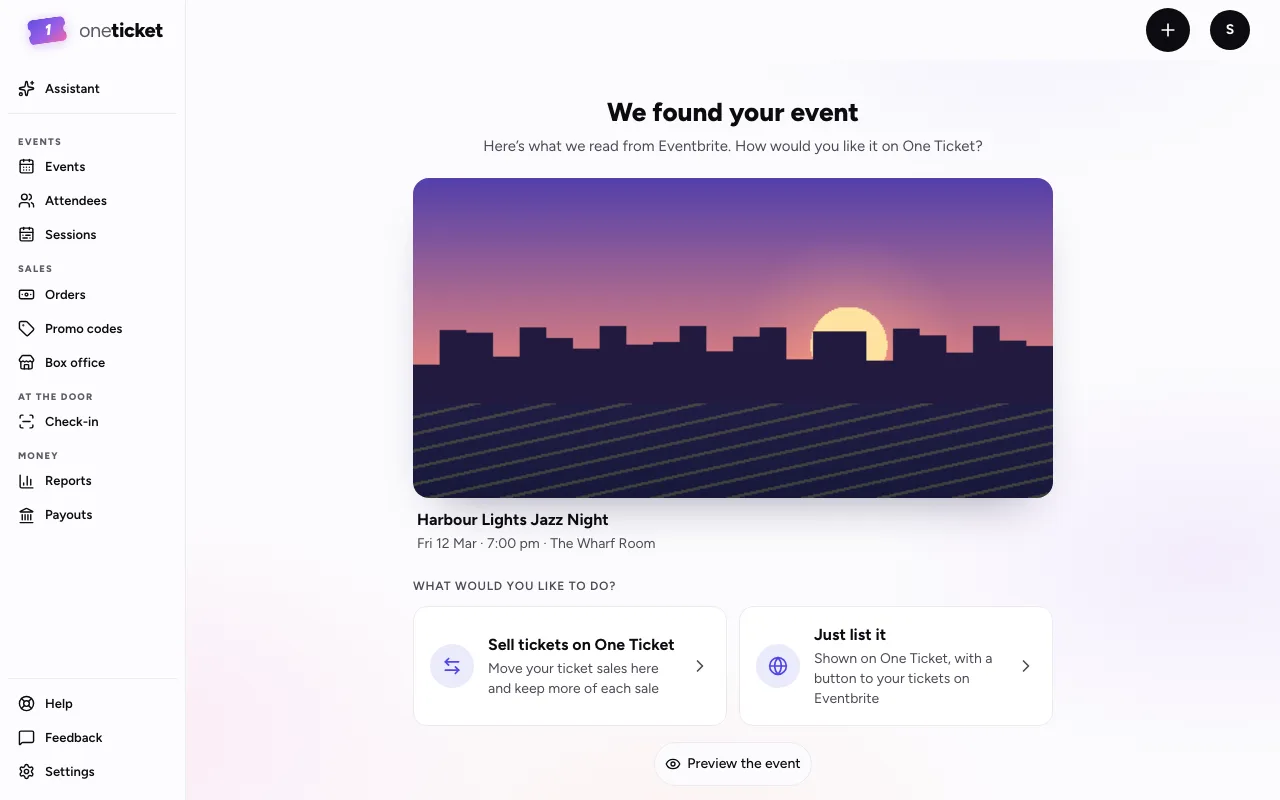
Your listing page opens with "Your listing is live on One Ticket." Now and then a new page is checked by us first, and it says "Your listing is being checked before it shows on One Ticket" instead.
Rather go straight to the editor? Choose Edit details first at the foot of the preview instead. It lists the event straight away and opens it in the editor, so you can change anything.
What comes across
- the name, and its description
- the date, or every day of an event that runs over several days
- the start and end times, in the event's own time zone
- the venue and address, or that it's online
- the price range, shown on your page as "From $35"
- the cover photo, when your page has one, with your page's colours picked to match it
A TryBooking event with many sessions brings its upcoming sessions too, shown under More dates.
Your ticket types, checkout questions, discount codes and orders stay on your platform. People book there, so they aren't needed here.
Check it after
- Dates and times: right day, right time zone.
- Place: the venue name and street address people will travel to.
- Price: the "From" price matches your cheapest ticket.
- Photo: a listing needs a cover photo to show on One Ticket's events pages. Real photos with little or no text on them work best.
To change any of it, see Keep your listings up to date.
If it doesn't come across
- "That isn't an event link we can read." Copy the address from your event's own page, not your account's dashboard or a search page.
- "We couldn't read that event. It may be private or finished." Check the event is public on your platform and still to come.
- "That's a lot of events at once." Wait a minute and try again.
- "This Eventbrite event is listed already." If you listed it, choose Open your listing. If we listed it for you, sign in with the email address we wrote to and it's yours: see Make your listing yours. If someone else has listed your event, choose Go to the listing to report it.
Selling on your own website?
The import reads Eventbrite, Humanitix, Luma, TryBooking and TicketHost pages. For your own website or shop, email us and we'll list your events for you, with their button going to your site.
Still stuck? Contact support and a person will get back to you.