Series
The Series menu: start a series, add one-off events and repeating schedules to it, run several schedules, and archive or delete it.
A series groups events that belong together, such as a weekly class, a term of workshops or a club night. Each event in it (a session) sells on its own page, and the series has one page listing them all. Subscriptions and term passes cover a whole series.
There are two ways to start one: New series from the Series menu (below), or a repeating event from New event, which makes its series for you.
The Series list
Choose Series in the menu on the left (on a phone, it's in the tab bar along the bottom). Each series shows its cover, name and repeat (such as "Weekly on Tue · 6:30 pm"), its Next session, Status, how many sessions are still To come and the tickets Sold across every session. Choose a row to open the series' page.
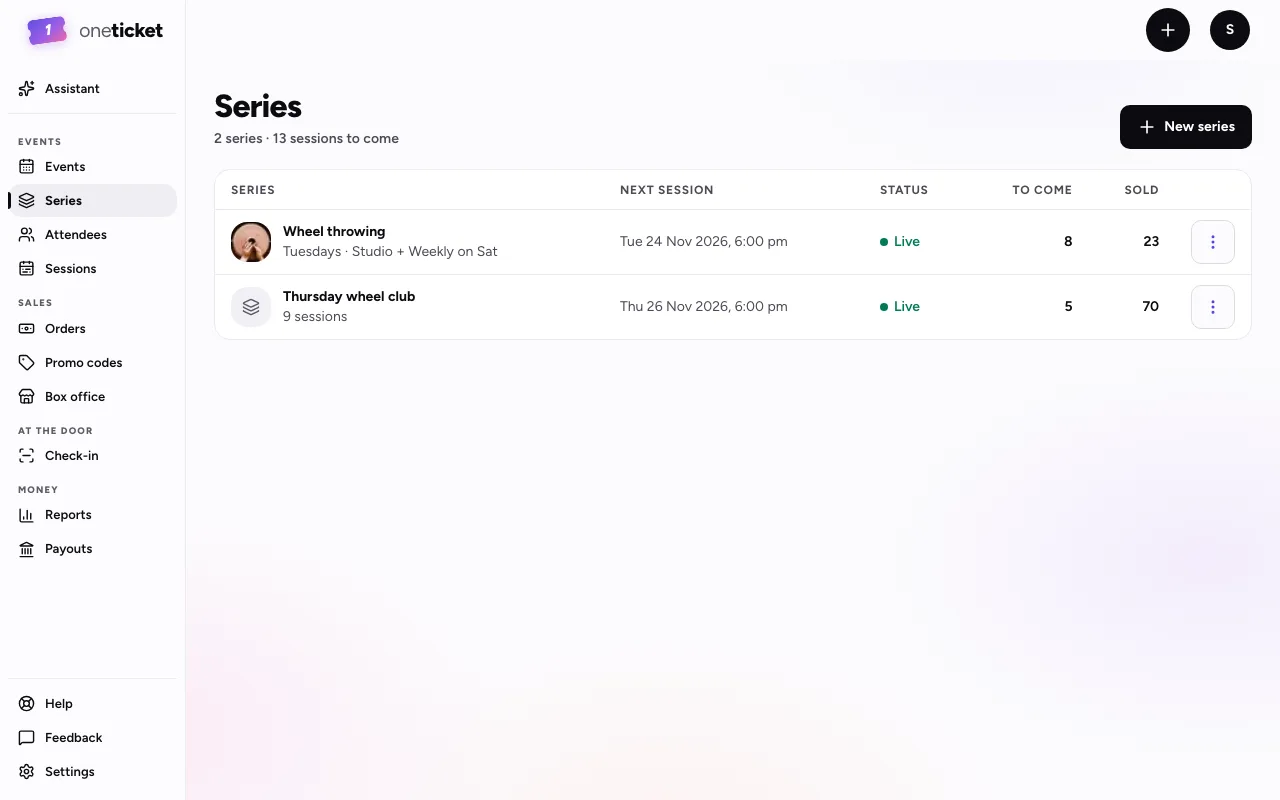
A series row's menu (⋮) has:
- Archive series (or Unarchive series in the Archived view). It says how many sessions on sale it also unpublishes.
- Delete series. While any session has orders it can't be pressed, and says "N sessions have orders: archive it instead".
See Archive or delete a series. Only owners and admins see the menu.
Archived series are under Archived at the top right, which shows once you've archived one. Choose Clear all (or × on the Archived chip) to see the rest again.
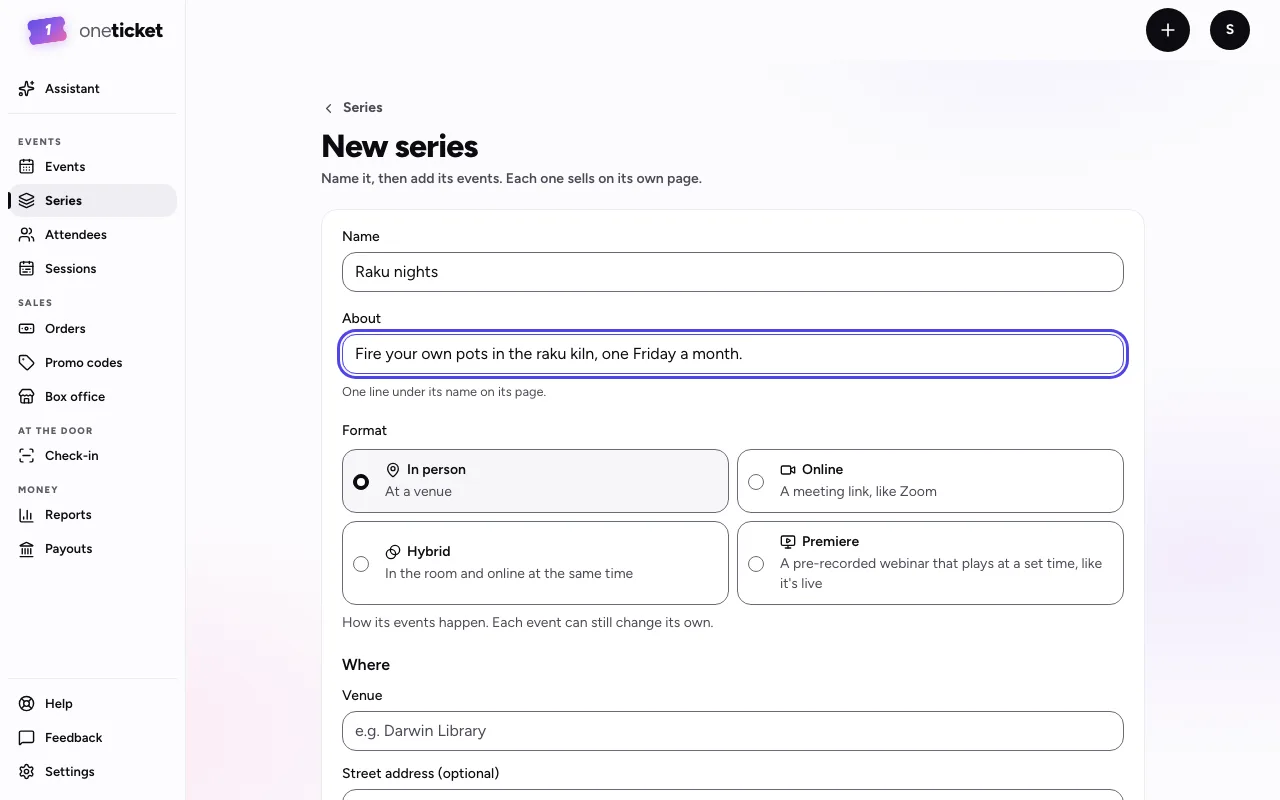
Start a new series
- On Series, choose New series (on an empty list, it's under "No series yet").
- Type its Name, such as Sunday Run Club.
- Optionally write About: one line under its name on its page.
- Choose its Format: In person, Online, Hybrid (in the room and online at the same time) or Premiere. It's how its events happen; each event can still change its own.
- In person: optionally fill in Where (Venue, Street address and Location name). Online: optionally paste the Meeting link only ticket holders get. With Zoom connected, How people join can instead be Zoom makes a meeting for each event (or a webinar): each event gets its own Zoom link when it's saved.
- Optionally add a Cover photo. It shows on its page and when it's shared, and new events you add to it start with it.
- Choose Create series.
Its page opens, empty, with Add an event. It stays off your organiser page until its first event is on sale, then shows there by itself (to change that, see Series settings).
Add to this series
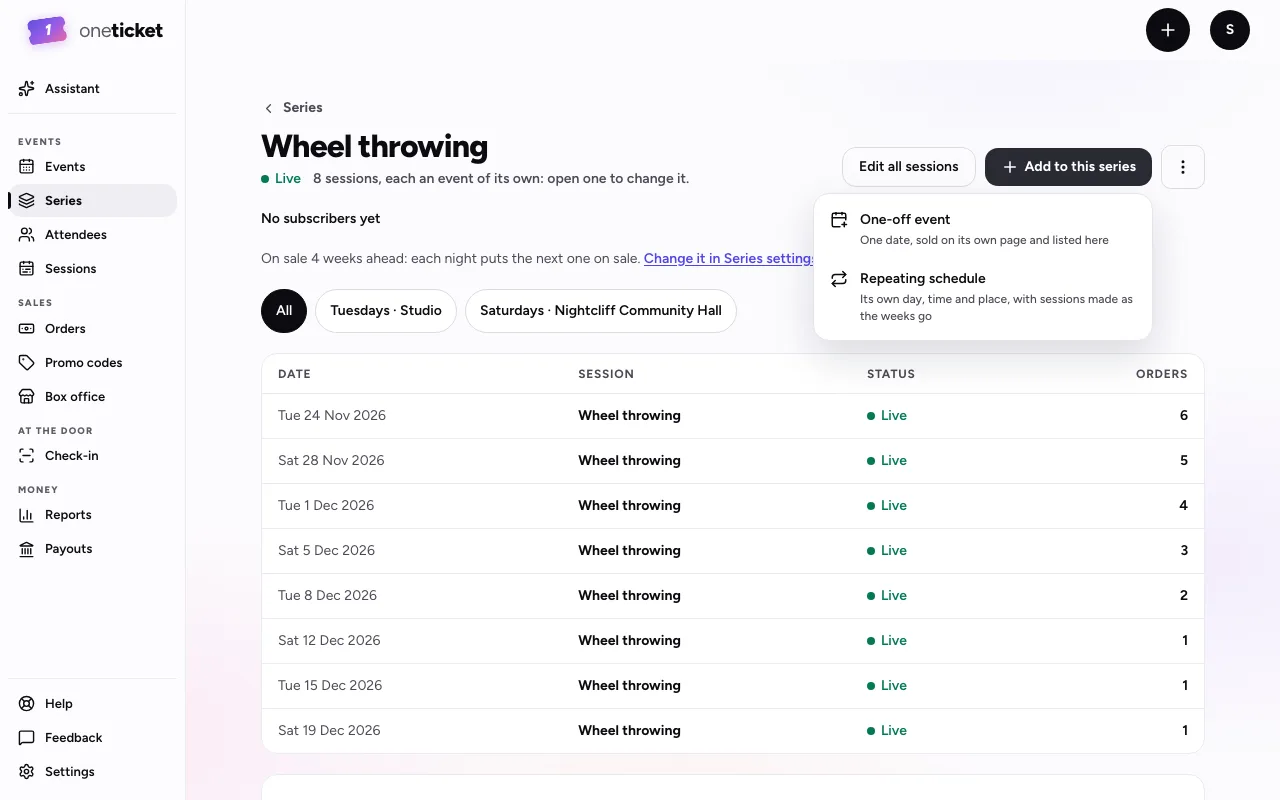
On a series' page, choose Add to this series:
- One-off event: one date, sold on its own page and listed in the series. The editor opens with the series picked under Part of a series, starting from the series' cover, look and place. Fill it in and choose Publish (or Save draft).
- Repeating schedule: its own day, time and place, with sessions made as the weeks go. The editor opens with Repeats set to Weekly. Set the first date, the days, how it ends and Sell how many weeks ahead under Pick a date, as for any repeating event, then the place, tickets and the rest, and choose Publish (or Save draft). Publishing puts that schedule's sessions on sale, and no other draft in the series.
A series with no repeat yet takes your first repeating schedule as its own. Add another and the series has several schedules (below).
A repeating schedule can't be a premiere or timed slots: those run as a series of their own. A premiere's series has no Add to this series: it plays its own list of videos.
If the series has subscribers, a new schedule's sessions are theirs too: the editor says "Subscribers get a ticket to each session of this schedule, as they do the series' others." A one-off event asks first: see Add an event to a series.
Several schedules
A series can run more than one schedule, such as Tuesday nights at the studio and Saturday mornings at the hall, each with its own day, time, place and booking window. Subscribers and term pass holders get tickets to every schedule's sessions.
- Names: each schedule is named from its days and place, such as "Tuesdays · Fitzroy" or "Every other Thursday · Online". To give one your own name, open ⋮ → Series settings and type it under Schedules, Name (up to 40 characters). Leave it blank to keep the made one.
- Booking windows: under Schedules in Series settings, each schedule has its own Sell how many weeks ahead. Each night puts the next session of each schedule on sale.
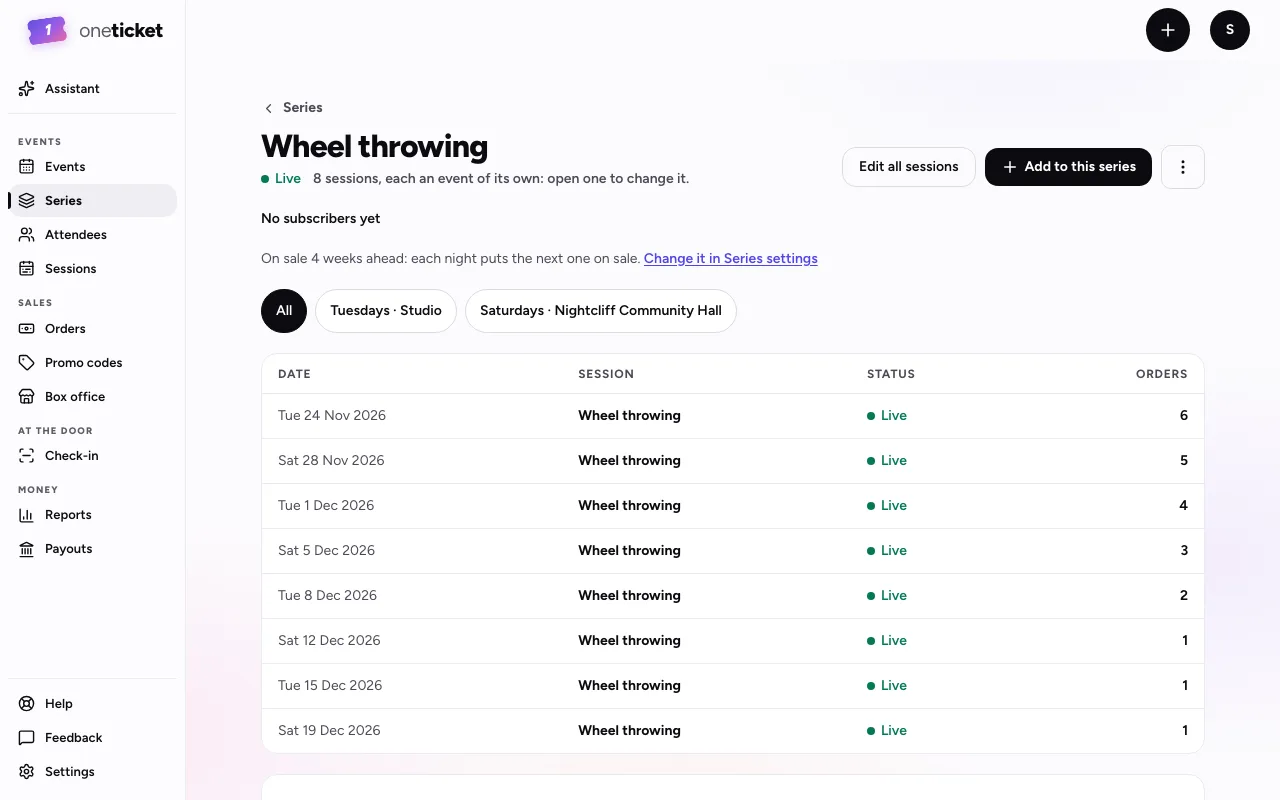
- The series page: chips over the sessions (All, each schedule, and One-offs for events you added by hand) show one schedule's sessions at a time.
- The public page: buyers see the sessions under each schedule's name, with one-off events last under "Also in this series".
- The Series list names both schedules, such as "Tuesdays · Studio + Weekly on Sat", and from three on says how many ("3 schedules").
Edit all sessions by schedule
- Choose Edit all sessions on the series page.
- Under Sessions, choose Every schedule, or one schedule.
- Every schedule: each schedule keeps its own start time and place, so Start time and Place can't be ticked. Everything else changes on every schedule's sessions.
- One schedule: its sessions only, and everything can change, its start time and place too.
- Carry on as in Edit a series.
The series page
Open a series from Series (or choose Part of the series at the top of a session's editor). The page lists every session with its date, status and orders. At the top:
- Add to this series: see above.
- Edit all sessions: change many sessions at once. See Edit a series.
- Publish series, while it has draft sessions: puts every draft on sale at once.
- Once it's on sale, "On sale N weeks ahead: each night puts the next one on sale", with Change it in Series settings.
The ⋮ at the top right has:
- View public page and QR code (once it's on sale): the series' page as buyers see it, and that page as a code to print or share.
- Sessions and bookings: this series' sessions on the Sessions calendar, with who's booked into each.
- Roll call (once a session has run, for those who can see orders): who's new, your regulars and who has stopped coming. See Reports.
- Series settings (below).
- Replay: the series' replay link and when it's sent. See Replays.
- Archive series and Delete series (below).
Under the sessions are its cards:
- Term pass (Sell a term pass until you sell one): each pass on sale with its dates, weeks and price, with Edit, Stop selling and Add another term. See Term passes.
- Subscription (or your own name for it): whether it's On or Off, and the price line buyers read, such as "From $6.50 per ticket + booking fee". Choose Set up subscription (or Edit subscription) to open its own page. Teammates who can't change events see View subscription. With term passes and no plans, it offers Add weekly or monthly plans. See Subscriptions for a series.
- Referrer links (once the series is on sale): how many referrers have a link to it and the tickets they brought. Manage referrer links (or View referrer links) opens the series' own Referrer links page, with each referrer's link to the series, Copy link and QR code. With no referrers yet, those who look after referrers see Add a referrer instead.
- Replay (for those who can change events): where the recordings come from and when they're sent, with Set up replays (or Open). See Replays.
A premiere's series also has its Videos card, above the sessions: see Premieres.
Series settings
On the series page, choose ⋮ → Series settings:
- Series name, About, Cover photo and Look: the series' own page. Each session keeps its own title, tickets and times.
- Sell how many weeks ahead (a series that repeats, for those who can publish events): from 1 to 26. More weeks puts the sessions now within reach on sale straight away; fewer takes none off sale. With several schedules, it's under each one in Schedules, with its Name.
- Open Replay: the replay link and when it's sent have their own pop-up. See Replays.
- Hide from public profile: takes the series off your organiser page. Direct links to it and its sessions still work. A series made with New series is kept off your organiser page (this switch on) until its first event is on sale; switch it off to show it now, and from then on it stays as you set it.
Choose Save. The series' address stays the same, so links you've shared keep working.
Archive or delete a series
Owners and admins can archive or delete a series from its row's ⋮ on Series, or from ⋮ on its page.
Archive series takes the series and all its sessions off your lists and keeps everything. Before you confirm, it says what happens:
- Sessions on sale are unpublished: sales stop, and buyers are told it's unavailable.
- Orders keep their tickets. Nobody is emailed or refunded.
- The series page and its subscribe page go offline, and no new sessions are added.
Unarchive series puts the sessions back on your list as they were. Choose Publish series to put them back on sale.
Delete series removes the series, its sessions and their pages. It can't be undone, and only works while no session has orders: otherwise, archive it.
Neither works while subscriptions or term passes to the series are still running: end them first (View subscribers), so nobody pays for sessions that won't happen. Cancel a plan; end a term pass with End term pass (nothing is refunded) or Refund term pass in full, or delete it (which refunds nothing; see Term passes). If someone is part-way through subscribing, try again within a day, once their checkout has closed. If an event isn't going ahead, cancel it so its buyers are told and refunded.
To archive or delete one session only, do it from that session: the rest of the series stays as it is. See Archive or delete an event.
Still stuck? Contact support and a person will get back to you.